Moving a live WordPress site to a new host is one of those tasks where the margin for error feels uncomfortably small. Your database, your files, your domain, and your DNS all need to land correctly on the new server before visitors notice anything changed.
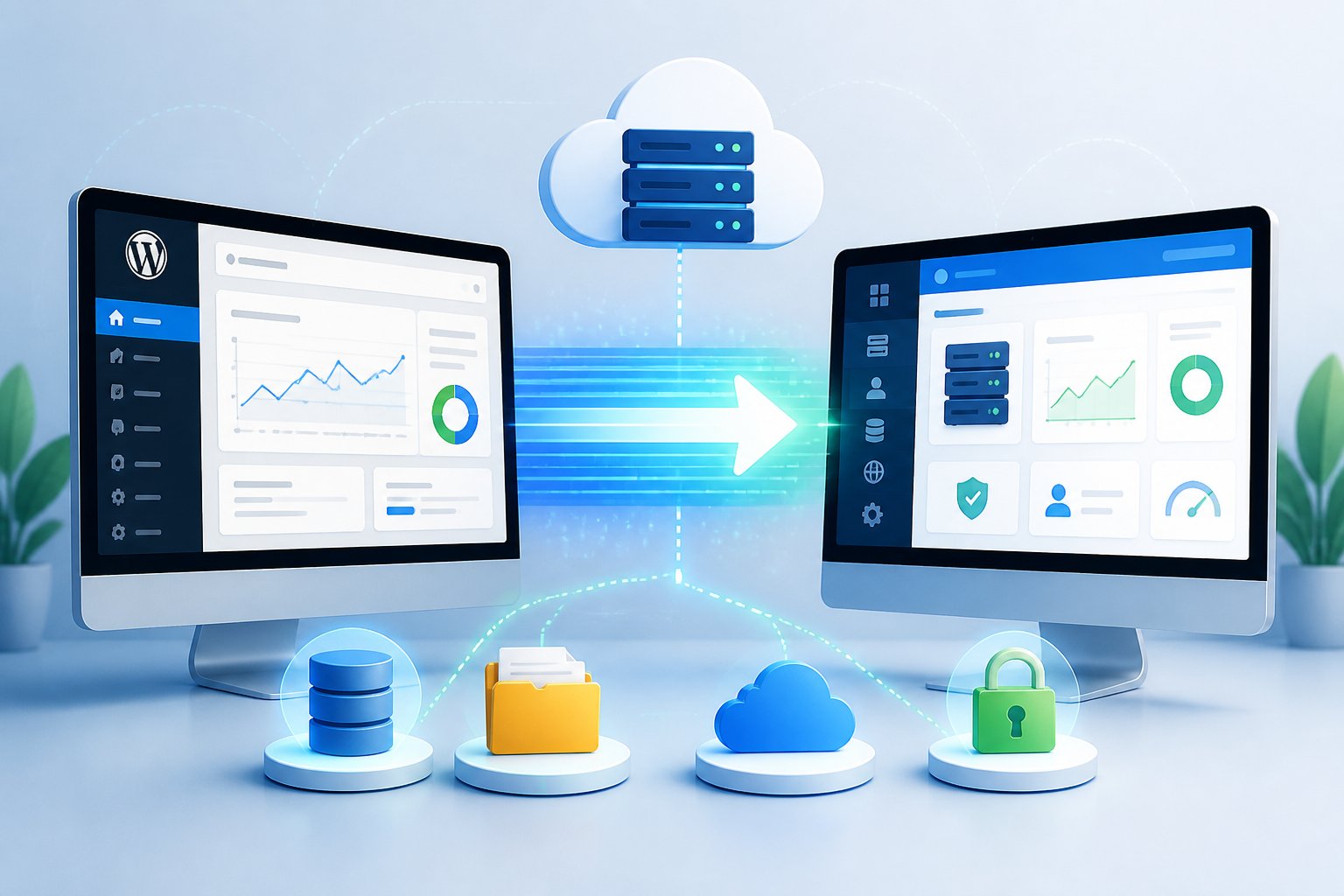
The good news? You can pull off a clean, no-downtime migration without hiring a developer, as long as you follow the right steps. The process breaks down into a handful of phases: prep your site, move everything to the new server, test using your hosts file, switch DNS, and only then cancel the old account.
This guide covers plugin-based migration, manual migration, and host-provided free migration services, so you can pick what fits your comfort level and your site’s size. It also digs into common failure points—database errors, redirect loops, broken media, and lost SEO visibility after a move.
Key Takeaways
- Pick your migration method before you touch anything. The wrong approach for your site size or hosting environment is probably the #1 reason people run into trouble.
- Test the site on the new server using your hosts file before changing DNS. This way, visitors never see a broken site.
- Keep your old hosting account active until DNS is fully propagated and you’ve checked that everything works on the new server.
Choose The Right Migration Method First
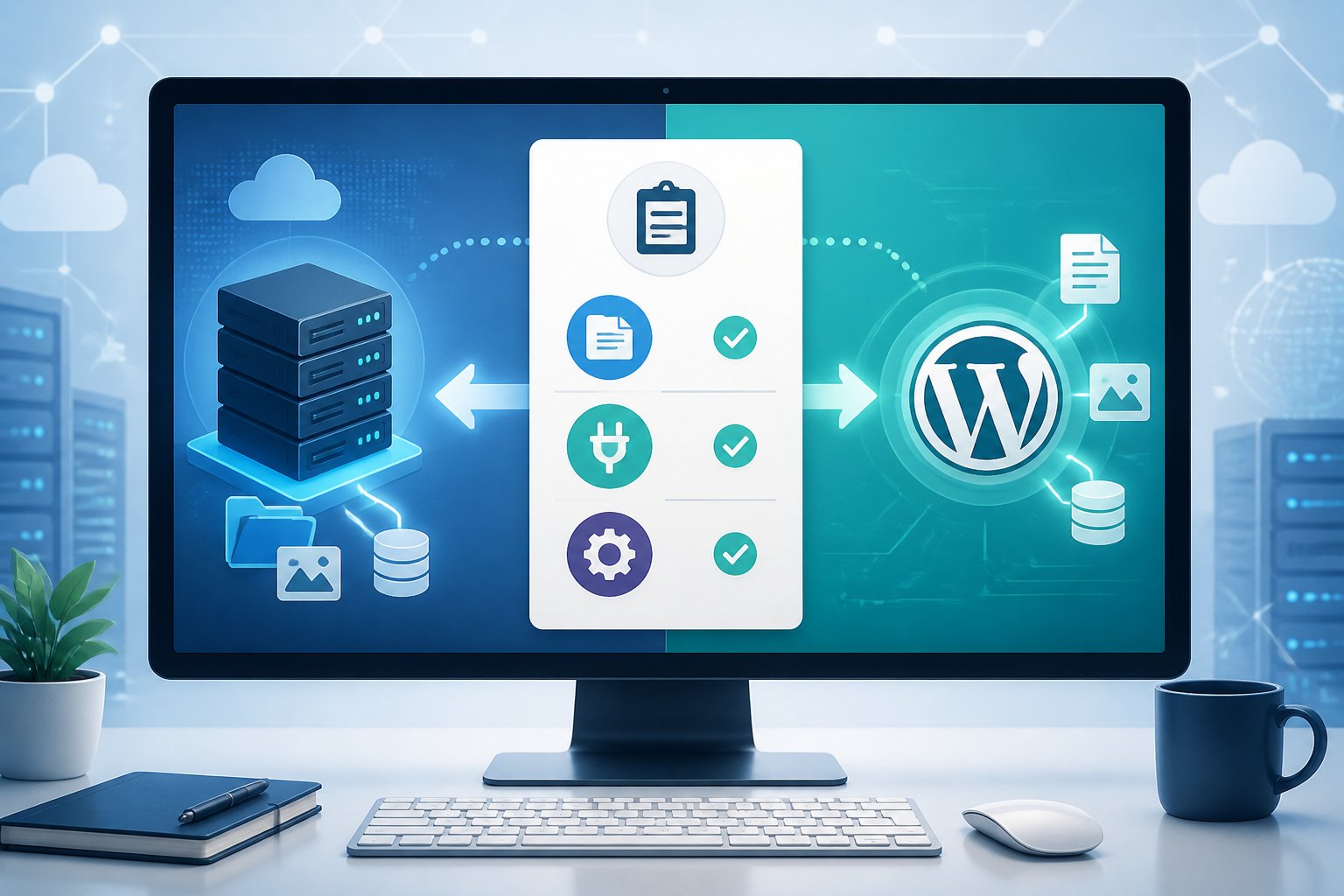
Your migration method decides how much control you have, how long the process takes, and where things could go sideways. You’ve got three practical options: a WordPress migration plugin, a fully manual file-and-database transfer, or a free migration service from your host.
When A WordPress Migration Plugin Is The Best Option
Most site owners who aren’t comfortable with FTP clients, raw SQL exports, or server configs will want to use a plugin. Tools like Duplicator Pro, All-in-One WP Migration, UpdraftPlus, and WPvivid bundle your whole site into a single archive and give you an installer script to handle the database import and config updates.
This method works best for sites under 2 GB with standard shared hosting setups. Duplicator Pro can handle bigger sites with chunked uploads, but the free version of All-in-One WP Migration caps imports at 512 MB unless you pay for an extension.
Where do plugins struggle? Huge media libraries, multisite networks, or hosts that limit PHP execution time or uploads can cause the import to timeout partway through.
When Manual Migration Makes More Sense
If you want total control, manual migration is the way to go. You export the database using phpMyAdmin, transfer files over FTP (FileZilla works), create a new database on the new server, import the SQL file, and update wp-config.php with the new info.
This approach suits developers, experienced site owners, or anyone moving a large or complex site where plugin size limits get in the way. It’s also safer when migrating between different server environments—like Apache to Nginx, or from shared hosting to managed WordPress hosting like WP Engine or SiteGround.
The catch? Miss a step—like updating the database prefix in wp-config.php—and you’ll hit an error as soon as you load the new server.
When To Use A Free Migration Service From Your Host
Many WordPress hosting companies (Hostinger, Bluehost, SiteGround, WP Engine, and others) offer free migration services. As WPBeginner points out, you’ll probably have to ask for it—hosts don’t always advertise this option. Their migration team takes care of the technical transfer for you.
Go this route if you don’t have the time or confidence to do it yourself, or if you’re moving a big, revenue-generating site where a mistake could be costly. Downside? You lose some control over timing and can’t test the new environment before the host schedules the move.
Prepare For A No-Downtime Move
How you prep before touching a single file really decides if your migration is smooth or a nightmare. You need three things lined up: a full backup, a scheduled migration window, and a call on whether to use maintenance mode.
Create A Full Site Backup
A true site backup means both your WordPress files and your database, taken as close to go-time as possible. Don’t trust a backup from days ago. Use UpdraftPlus, Jetpack Backup, or your host’s snapshot tool to make a fresh copy, then download it to your computer so you’re not relying on the old server staying up.
Save the backup in at least two places—your computer and something like Google Drive or Dropbox. If things go south, this is your safety net.
Before you back up, update WordPress and your plugins. Migrating an outdated install just adds more variables and headaches if something breaks.
Schedule A Safe Migration Window
Pick a quiet time based on your analytics—usually late night or early morning on a weekday. The site stays live on the old server during the transfer, but you want to keep the gap between your last backup and DNS switch as short as possible.
Lower your DNS TTL (Time to Live) to 300 seconds (5 minutes) at least a day or two before you plan to switch DNS. This tells DNS servers to refresh their cache more often, so when you flip the switch, propagation is much faster. Pronto Marketing’s migration checklist points out that reducing TTL ahead of time is one of the most overlooked but high-impact prep steps.
Put The Site In Maintenance Mode
Maintenance mode keeps users from submitting forms, making purchases, or registering accounts during the window when the old and new servers might briefly show different states. You can use a plugin like WP Maintenance Mode or just add a maintenance page via your theme.
If you run an e-commerce site or a membership platform, this is pretty critical—real-time data changes during migration can mean lost orders or duplicate records. For basic sites or blogs, it’s still a good idea but not a dealbreaker.
Gather Access And Technical Details
Before moving any files, get all your credentials and access points organized. Scrambling for a missing FTP password halfway through is just asking for trouble.
Collect Hosting And File Access Credentials
You’ll need SFTP or FTP credentials for both the old and new hosting accounts. Most hosts list these in cPanel or Plesk under FTP Accounts. In FileZilla, connect to the old host using its IP or hostname, go to the public_html directory, and get ready to download everything.
For the new host, grab the server IP address from your hosting panel. You’ll need this IP to edit your local hosts file later so you can preview the migrated site before DNS changes.
Locate Your Database And WordPress Settings
Your WordPress database credentials are in the wp-config.php file at the root of your WordPress install. Open it with FTP or your host’s File Manager and note the values for DB_NAME, DB_USER, DB_PASSWORD, and DB_HOST. You’ll swap these for the new host’s database info after the move.
On the old host, open phpMyAdmin from cPanel to double-check the database name and make sure you can export the database before you start. On the new host, create a new MySQL database and user through cPanel or Plesk, then give the user full access to that database.
Confirm Domain And DNS Access
Log into your domain registrar and make sure you can change nameservers or update the A record. This is separate from your hosting panel. Registrars like GoDaddy, Namecheap, or Google Domains control the DNS records that point your domain name to a server IP. Check your login credentials now—don’t wait until you’re mid-move.
Write down the current A record value so you can roll back if needed. If something goes wrong after the DNS change, you can point traffic back to the old server fast.
Move The Site With A Plugin
Plugin-based migration boils down to three steps: package the site on the old host, upload the package to the new host, and run the installer. The screens look a little different between tools, but the logic is basically the same for Duplicator Pro, All-in-One WP Migration, and WPvivid.
Package The Existing Site
Install your migration plugin on the old site and run its backup or package wizard. With Duplicator Pro, go to Duplicator Pro > Backups > Add New, name your package, make sure the system scan passes, and click Create Backup. The plugin makes two files: an archive .zip with all your files and database, and an installer.php that automates the import on the new host.
Download both files to your computer when the package is ready. Don’t forget the installer file—the archive alone won’t get the job done.
Upload The Installer Files To The New Host
Fire up FileZilla or your host’s File Manager and connect to the new host. Head to the root web directory—usually /public_html/.
Double-check that this folder’s empty. If your host pre-installed WordPress, go ahead and delete those files first, or things are going to get messy.
Now upload both the archive .zip and the installer.php file right into public_html. Seriously, make sure you’re in the root directory—if you drop them in a subfolder, the installer will just fail and you’ll be hunting for errors.
The Duplicator migration guide hammers this point for a reason.
Large archives might take a while, especially if your connection’s slow. Don’t close your FTP app until you see both files listed, with the correct sizes.
Run The Import And Verify The Site
Before opening the installer in your browser, you’ll want to edit your local hosts file. Point your domain to the new server’s IP (there’s a walkthrough on this in the testing section).
This trick lets you use your real domain for the installer, but keeps live visitors on the old site. Way safer.
Go to http://yourdomain.com/installer.php in your browser. The installer will ask for your new MySQL database info.
Type in the database credentials, confirm your site URL, and let the importer do its thing. Once it’s done, log into WordPress admin on the new server and check that your content, plugins, and theme all made it over before you even think about DNS changes.
Transfer The Site Manually
Manual migration takes more steps than a plugin, but honestly, each part’s pretty straightforward. You get more control over every file and setting.
Here’s the three-phase process: export the database, copy the files, then import and reconfigure.
Export The Database From The Old Host
Log into cPanel on your old host, then open up phpMyAdmin. Pick your WordPress database from the left, hit Export, choose the Quick method with SQL format, and download the .sql file.
If your database is huge, switch to Custom and turn on gzip compression to shrink the file.
This SQL file has everything: posts, pages, settings, users, plugins. Don’t let it float around—treat it like a password file, because it actually contains database info in plain text.
Copy WordPress Files To The New Server
Fire up FileZilla, connect to the old host with SFTP, and go to public_html. Download everything to your computer.
This includes wp-content (themes, plugins, uploads), plus wp-config.php and .htaccess. Once you’ve got the files, connect to the new host in FileZilla and upload them all to the new public_html directory.
Hold off on uploading wp-config.php for now, since you’ll need to update it with the new database info. Or, if you already uploaded it, just edit it on the server after you set up the database.
If you’re comfortable with the command line, TeamUpdraft recommends using WP-CLI to transfer files—it’s way faster if you know your way around SSH. Here’s a bit more on that if you’re curious.
Import Data And Update Configuration
On your new host, create a fresh MySQL database and user in cPanel. Give the user full privileges.
Open phpMyAdmin, pick your new empty database, click Import, and upload that .sql file you exported earlier.
Edit wp-config.php in your favorite text editor. Update DB_NAME, DB_USER, DB_PASSWORD, and DB_HOST to match the new database info.
Save and upload the updated file. At this stage, your whole site’s on the new server. Test it with the hosts file trick before messing with DNS.
Update URLs And Domain Settings Safely
If you’re just moving to a new server but keeping your domain, you don’t have to worry much about URLs. But if you’re changing the domain too, you’ll need to update every reference to the old URL in your database, or you’ll end up with broken layouts, missing images, and endless redirect loops.
Handle Domain Name Changes
WordPress keeps the site URL in two fields: siteurl and home in the wp_options table. These tell WordPress where it “lives.”
If they don’t match your actual domain, you’ll get redirect loops, blank screens, or you might even get locked out of the admin.
It’s worth knowing the difference between WordPress.com and WordPress.org here. With self-hosted WordPress.org, you have full database access for these changes. WordPress.com is another animal—you don’t control the server, so migration is a whole different process.
Run Search And Replace For Old URLs
Your database stores serialized PHP data, so you can’t just do a basic find-and-replace or you’ll break stuff. You need a tool that understands serialization.
The Better Search Replace plugin is a solid choice. It handles serialized strings safely and lets you preview everything before you hit “go.”
If you like the command line, WP-CLI’s wp search-replace 'https://oldsite.com' 'https://newsite.com' --all-tables command works great. For a one-off browser fix, Search Replace DB is reliable, but delete it right after using it—leaving it on your server is a security risk.
Check Site Address Settings
After you’ve run search-replace, log into WordPress admin on the new server. Go to Settings > General and check that both WordPress Address (URL) and Site Address (URL) are set to the right domain and protocol (HTTP or HTTPS).
If you’re stuck in a redirect loop and can’t access the admin, temporarily fix these values by adding to wp-config.php:
define('WP_HOME','https://newsite.com');
define('WP_SITEURL','https://newsite.com');
Remove those lines once you’ve fixed things in the admin panel.
Test The New Server Before DNS Cutover
Testing the new server before flipping DNS is honestly the most important step. You’ll catch database errors, broken pages, SSL issues, and redirect problems—without any of your visitors seeing the mess.
Preview The Site Using A Hosts File
Your computer’s hosts file tells your OS which IP to use for a domain, overriding DNS just for you. Editing it lets you visit your domain on the new server, while everyone else stays on the old one.
On Windows, open Notepad as Administrator and edit C:WindowsSystem32driversetchosts. On macOS, use sudo nano /private/etc/hosts in Terminal.
Add these lines (swap in your actual server IP):
[new server IP]  yourdomain.com
[new server IP]  www.yourdomain.com
Save, clear your browser cache, and visit your domain. You should see the new server now. Savvy.co.il has a nice write-up on this. Don’t forget to remove or comment out those lines once DNS has switched over.
Validate Forms, Media, And Admin Access
Click through every page type: home, blog, single posts, static pages, and any custom content. Try every form—contact, signup, whatever you’ve got.
If you run WooCommerce, do a test purchase. Upload a media file and view it. Log in and out of admin. Check that all plugins are active and see if any update notices pop up.
Pay extra attention to pages that pull data dynamically—search results, filtered archives, membership content. These spots are where serialization or URL issues usually show up.
Confirm SSL And HTTPS Behavior
Make sure your new host has an SSL certificate set up before you switch DNS. Most hosts offer free SSL through Let’s Encrypt—just a click in cPanel, really.
Visit https://yourdomain.com (using your hosts file) and check for certificate warnings. HTTP should redirect to HTTPS automatically.
If your .htaccess had HTTPS redirects on the old server, double-check that those rules are still there. If you miss this, some visitors might land on HTTP pages after cutover, which can trigger browser warnings and hurt your search rankings.
Switch DNS Without Breaking Traffic
Switching DNS is when your live site finally moves to the new server. With a little prep, this step should be pretty stress-free.
Update Nameservers Or DNS Records
You’ve got two options to point your domain to the new host. You can update nameservers at your registrar to the new host’s, which hands over DNS management completely.
Or you can just update the A record, keeping your current DNS provider but pointing the domain to the new server’s IP. This is usually simpler and faster.
Log in to your domain registrar, find DNS settings, and change the A record from the old IP to the new one. Save and you’re set.
Understand DNS Propagation Timing
DNS propagation is just the time it takes for your DNS changes to spread worldwide. Even with a low TTL, it can take anywhere from a few minutes to a few hours.
During this window, some people will hit the old server, some the new. That’s why you need both servers running at the same time.
Don’t delete anything from the old host until you’re sure propagation’s done. whatsmydns.net is handy to check status from different locations.
Know When It Is Safe To Cancel The Old Host
Wait at least 48 to 72 hours after your DNS change before canceling the old hosting, even if everything looks good from your end.
Use that time to watch your analytics for weird traffic drops, confirm form submissions, and test from different devices and networks.
WP Web Advisors suggests keeping the old host for one extra billing cycle as a safety net. That’s a small price for peace of mind. Once you’re sure everything’s working, cancel the old account in your provider’s billing dashboard.
Fix Common Migration Problems
Even if you’re careful, migrations can throw errors. Most issues fall into three buckets: database connection failures, redirect problems, and broken content. Each has its own troubleshooting path.
Resolve Database Connection Errors
When you see “Error establishing a database connection” in WordPress, it means WordPress can’t connect to your MySQL database. This usually happens because the credentials in wp-config.php are wrong.
Pop open that file and double-check DB_NAME, DB_USER, DB_PASSWORD, and DB_HOST. They need to match exactly what you set when you created the database on your new host.
It’s easy to accidentally leave the old database hostname in DB_HOST. While lots of hosts use localhost, some need a specific hostname, which you’ll find in your hosting panel.
Another thing: make sure in cPanel that your database user actually has All Privileges for the database. If you’re sure the credentials are right but the error won’t go away, check in phpMyAdmin to see if the database import finished—compare the table count with your original.
Repair Redirect Loops And HTTPS Issues
If your browser complains about too many redirects, you probably have conflicting siteurl/home values, duplicate HTTPS redirect rules, or a reverse proxy mismatch. Jump into your wp_options table in phpMyAdmin and make sure siteurl and home are set right.
Behind Cloudflare or a load balancer? Make sure SSL mode is set to Full (Strict) instead of Flexible. Flexible mode can cause an endless redirect loop between Cloudflare and your server.
Don’t forget to check your .htaccess file for any extra or conflicting redirect rules. That’s a sneaky spot for problems to hide.
Find Broken Links And Missing Media
If you spot broken links or missing images after a migration, chances are you’ve got hardcoded URLs pointing to your old domain, or maybe some media files didn’t make the trip. Run a scan with Broken Link Checker to see what’s turning up 404s.
For missing images, compare your wp-content/uploads folder between the old and new server—folder sizes should match. If the files are there but images still look broken, your search-replace probably missed some URLs in the database.
Try running Better Search Replace again, but this time target the wp_posts and wp_postmeta tables specifically. That usually does the trick.
Protect SEO And Crawlability After Launch
If you keep the same domain and URL structure during a host migration, SEO risk stays pretty low as long as you do things right. Problems with crawlability usually pop up if you miss redirects, forget to update your sitemap, or accidentally block indexing in robots.txt on your new server.
Resubmit Your Sitemap And Monitor Indexing
After the migration, log in to Google Search Console and resubmit your XML sitemap manually. This lets Google know your site’s on a new server and kicks off a fresh crawl.
Most WordPress SEO plugins like Yoast or Rank Math create sitemaps at /sitemap.xml or /sitemap_index.xml automatically. Keep an eye on the Coverage report in Search Console for a week or so after launch.
If you see a brief drop in indexed pages, don’t panic—it’s normal. But if the drop sticks around for more than 10 to 14 days, you might have a crawlability issue that needs attention.
Check Robots Directives And Internal Links
Go to https://yourdomain.com/robots.txt in your browser. Make sure it doesn’t say Disallow: / or block any important directories. Sometimes a staging robots.txt sneaks onto production during migration. It happens.
Look through your site’s internal links. If you find any pointing to the old domain or using HTTP instead of HTTPS, run another search-replace and crawl with Screaming Frog or Ahrefs Webmaster Tools. That’ll help you catch any lingering hardcoded links.
Review Redirects In Search Tools
Use the URL Inspection tool in Google Search Console to check specific URLs. Make sure they return a 200 status and don’t get stuck in a redirect chain.
If you changed URL structures during migration, set up 301 redirects for every old URL. Each redirect should go straight to its new destination—no multi-hop chains if you can help it.
Too many 301 chains slow down crawl budget and add latency. FreshySites says cutting redirect chains to just one hop is one of the fastest ways to get crawl efficiency back after a migration. They’re right.
Optimize The Site On The New Host
Once your site’s stable and Google’s indexing everything, it’s time to focus on performance. Migration’s the perfect excuse to see if your new host is really better than the old one.
Compare Performance Before And After
Before you migrate, run a speed test with Google PageSpeed Insights or GTmetrix and save the results. After you launch on the new server, run the same test again.
Pay special attention to Time to First Byte (TTFB)—that shows how fast your server responds. Compare it with your old numbers.
If TTFB looks better, awesome. If not, check your caching plugin. Is it active and set up right? Hosts like SiteGround and WP Engine have their own server-level caching, and you might need to turn that on after migrating.
Review Hosting Fit For Future Growth
Migration’s a good time to ask if your hosting plan still fits your needs. Shared hosting with Bluehost or Hostinger is fine for most small sites, but if your traffic’s climbing or you run WooCommerce, you’ll hit the ceiling on shared plans pretty fast.
Managed WordPress hosts like WP Engine and SiteGround give you isolated resources, automatic scaling, and built-in staging environments. If you moved because your old host was too slow, double-check the new plan’s resource limits before a traffic spike catches you off guard.
Keep A Rollback Plan Until Stable
Don’t cancel your old hosting or delete your old database backup for at least two to four weeks after migrating. Keep your backup .sql file and original wp-content folder somewhere safe—local or cloud storage works.
If a big problem pops up after launch, that backup is your fastest way back. Set a calendar reminder for 30 days after migration to close out the old host, review performance, and archive backups. At that point, with DNS, search, and performance all steady, you’re done.
Frequently Asked Questions
What are the exact steps to move a WordPress site to another hosting provider without downtime?
First, back up your site and database. Set up a fresh hosting account—don’t install WordPress yet. Copy your files and database to the new server, edit your local hosts file to preview the site, and make sure everything works. Then update your DNS records or nameservers to point to the new host. Keep the old host running until DNS propagation finishes, which usually takes 24 to 48 hours.
Which WordPress migration plugin is most reliable for large sites and media libraries?
Duplicator Pro handles big sites well because it supports chunked uploads and doesn’t have the same size limits as the free All-in-One WP Migration. For media libraries over 5 GB, it’s usually easier to move the wp-content/uploads folder with FTP and do a database-only plugin migration instead of packing everything into one archive.
How do I migrate a WordPress site manually without using a plugin?
Export your database as an SQL file in phpMyAdmin on the old host. Download all your WordPress files from public_html with FileZilla. Set up a new database and user on the new host, upload your files, import the SQL file, and update wp-config.php with the new database info. Test with your local hosts file before switching DNS.
How do I update the site URL and database values after moving to a new server?
Use the Better Search Replace plugin or WP-CLI’s wp search-replace command to update every instance of your old URL in the database, including in serialized data. Then check that siteurl and home in Settings > General show the right new URL. If you’re locked out by a redirect loop, add WP_HOME and WP_SITEURL to wp-config.php temporarily.
What should I change in wp-config.php and DNS settings when switching hosts?
In wp-config.php, update DB_NAME, DB_USER, DB_PASSWORD, and DB_HOST to match your new host’s database info. For DNS, change the A record at your domain registrar to the new server’s IP, or update nameservers to your new host’s. Lower the DNS TTL 24 to 48 hours before you switch to speed up propagation.
How can I migrate an existing WordPress site to WP Engine and verify everything works?
WP Engine actually gives you a free migration tool—their Automated Migration plugin. Just install it on your current site and connect it to your WP Engine account with an API key.
Once you move everything over, try out WP Engine’s staging environment. You can also use the hosts file trick to check out your site at your domain before you mess with DNS.
Don’t forget to make sure SSL works, caching is turned on, and you’ve updated any hardcoded URLs with a quick search-and-replace. Do all that before you go live, and you should be in good shape.


Author: Sintugau
Louis is a web hosting expert with over 5 years of experience reviewing and testing hosting providers. He helps users find the best hosting solutions for their needs.